Creating, assigning and grading exams (teachers)
Use Exam Manager to create exams, homework and quizzes, assign them to groups and grade submissions.
Written By Grout
Last updated 20 days ago
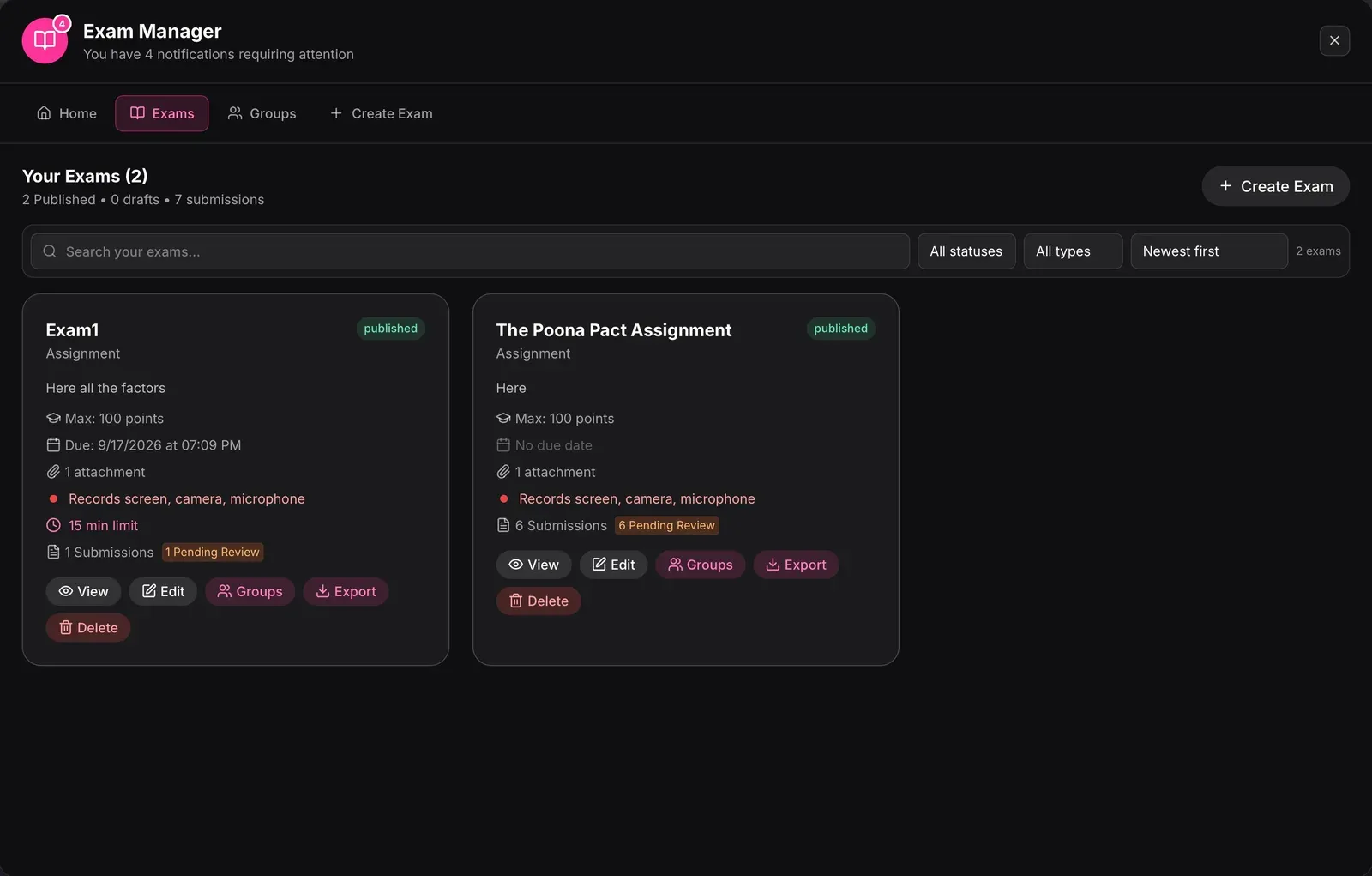
Exam Manager is available on institution accounts. Open it from the Exam Manager tile on Home, or from the Exam button inside any document.
Before you start
Create student groups: Groups → Create Group → Add Students. Groups are shared with Alpha Learning.
Create an exam
Press Create Exam.
Enter the title and type (Exam, Homework, Assignment, Quiz or Project), description, instructions, max score and due date.
Optionally allow late submissions with a Late penalty (%).
Attach the current file as the template students start from, plus any Additional attachments (PDF, Word, GRT, images, Excel, PowerPoint; 10 MB each).
Optional: Time limit, Recording required and the AI assistant during the exam policy.
Assign to groups, then Create & publish. Students and their guardians are emailed.
Grade
Open the exam's submissions.
Each submission includes an AI Usage Report: chat, image and vision use, models and prompts.
Reply to Submission with a grade, feedback and optional files — or Request redo, or Void.
Use the Submissions Table and Leaderboard tabs, and Export Summary / Export Detailed.
When you open a submission, a draggable review bar with Grade stays on screen.
Was this helpful?
Still need help? Ask the team