Generating images and video with AI
Use prompt-to-image and image-to-video generation in the media bin.
Written By Grout
Last updated 4 months ago
Grout Film's AI Image & Video Generation is built directly into the media bin, so generating media is part of editing — not a separate step in another app.
Prompt-to-image
In the media bin, choose to generate an image.
Write a prompt describing the image you want.
The generated image appears in the media bin, ready to use.
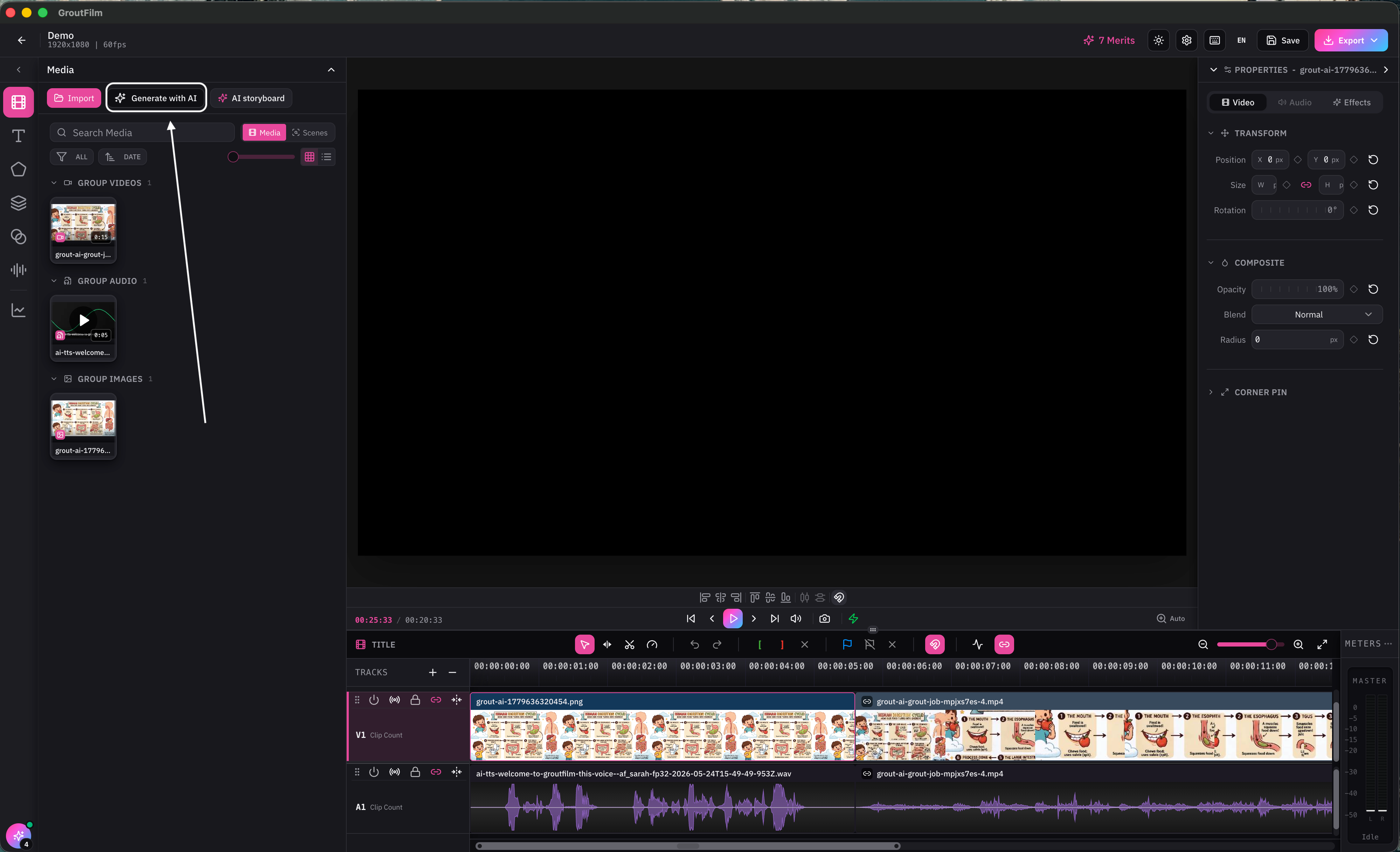
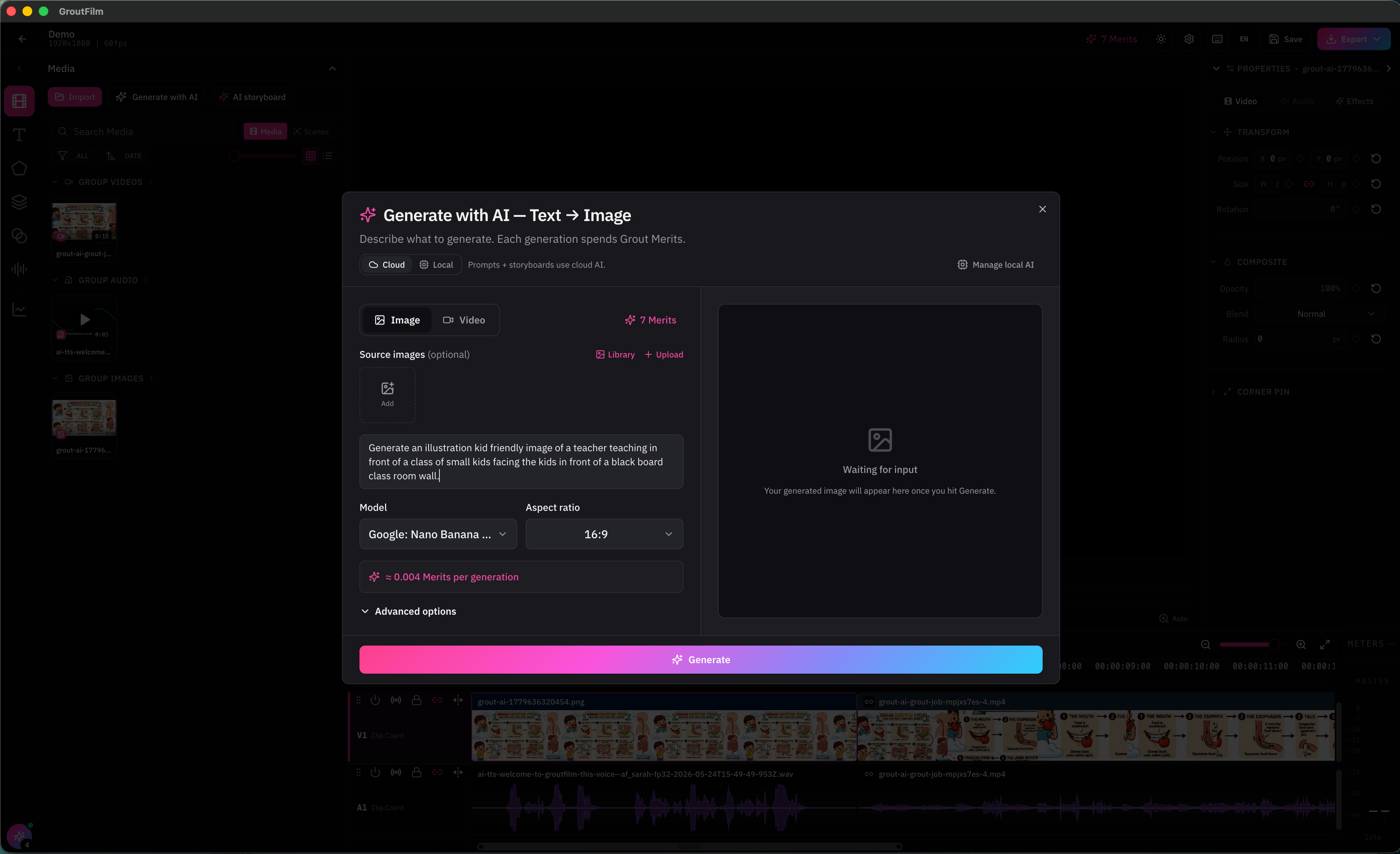
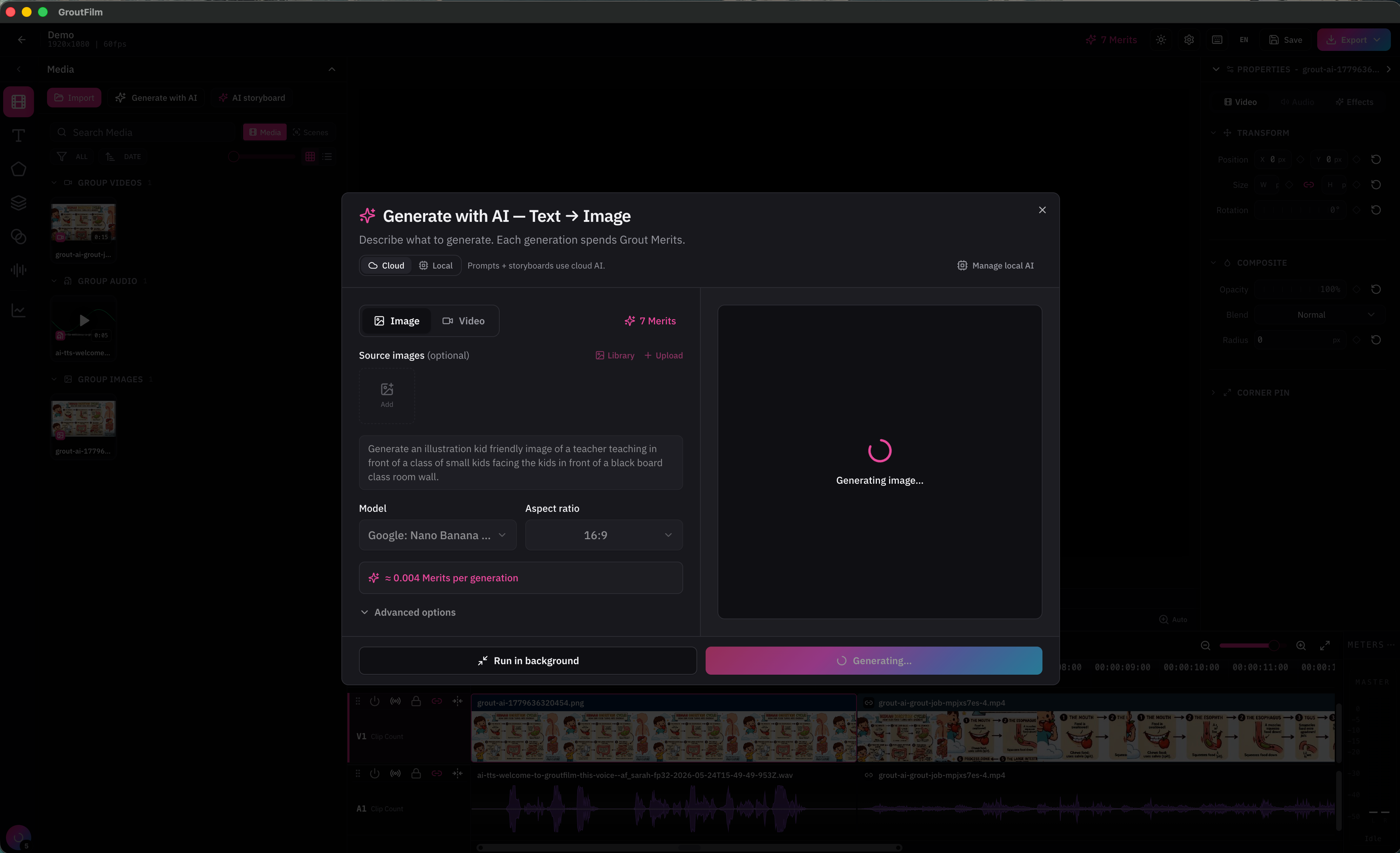
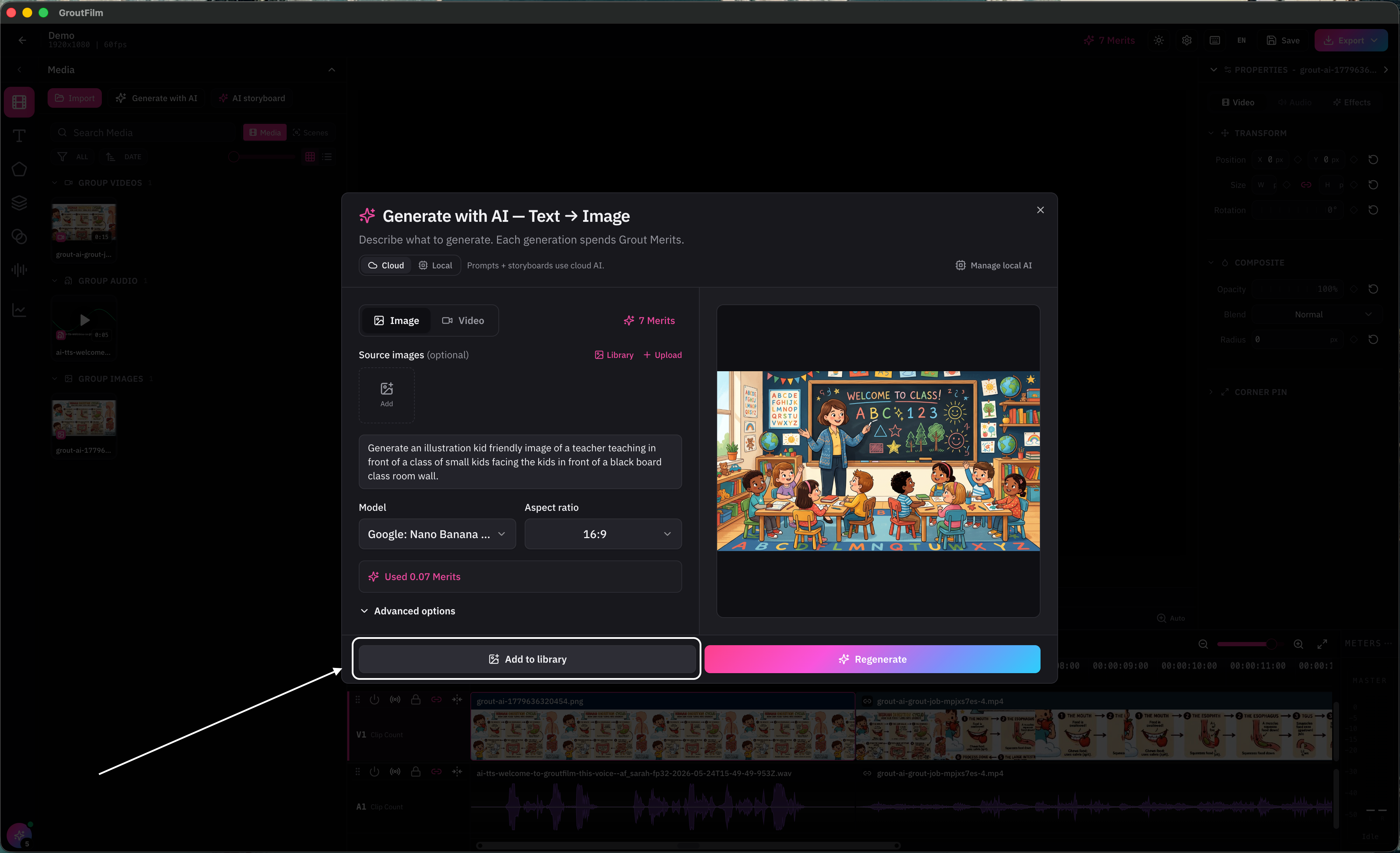
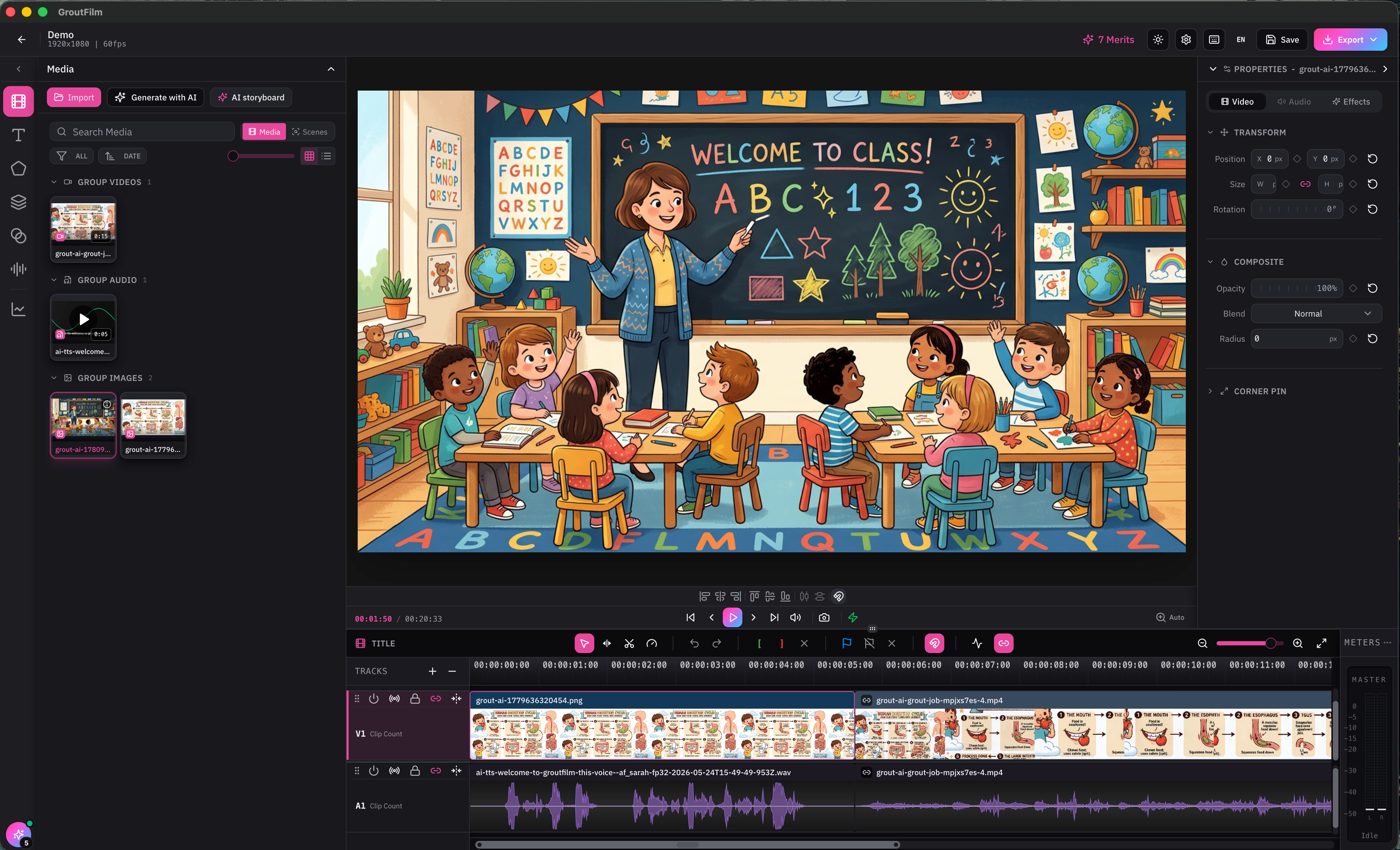
Image-to-video
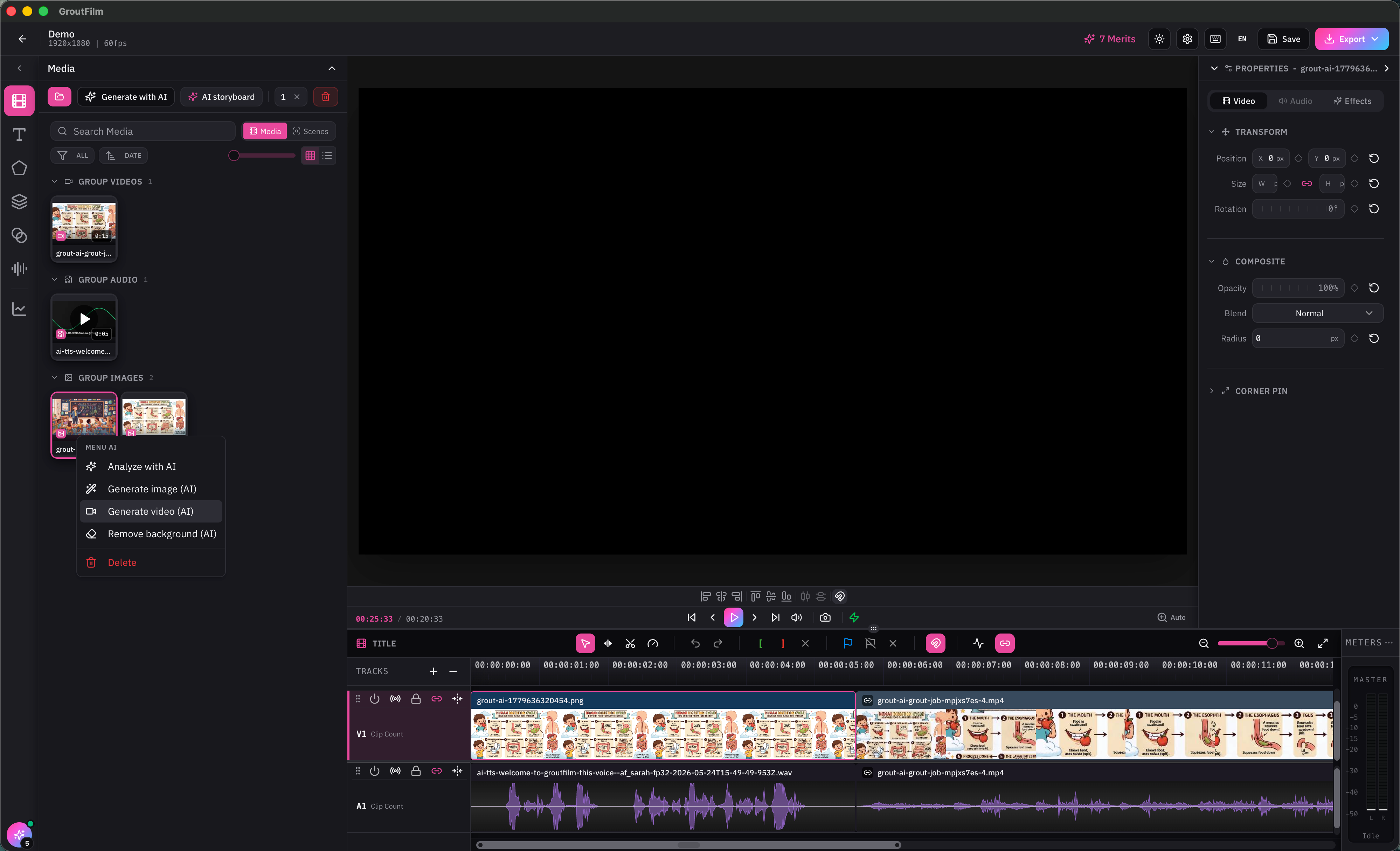
Select an image in the media bin — generated or imported.
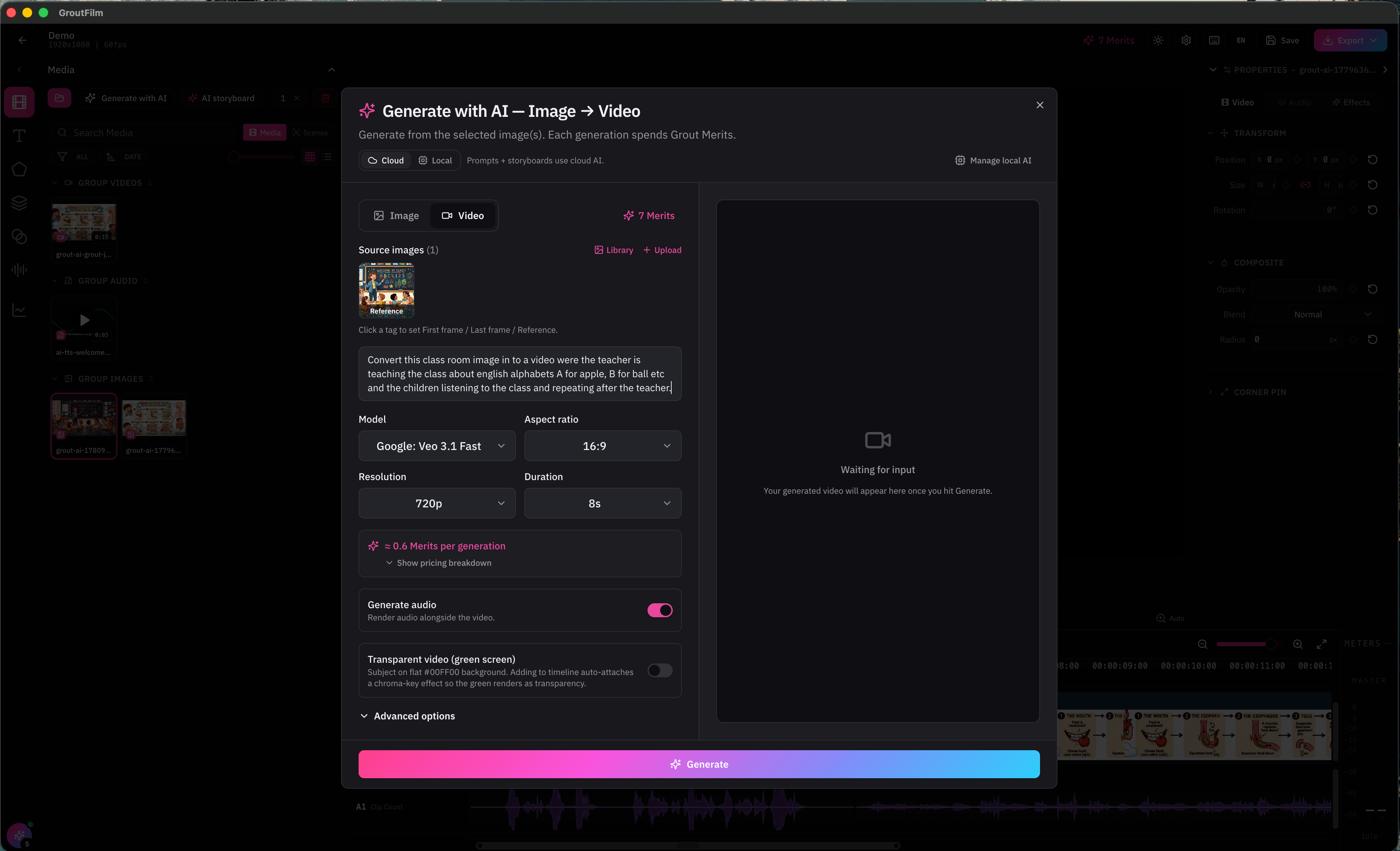
Use ‘Generate with AI’ button or right click on the image to see the generate video option to turn it into a video clip.
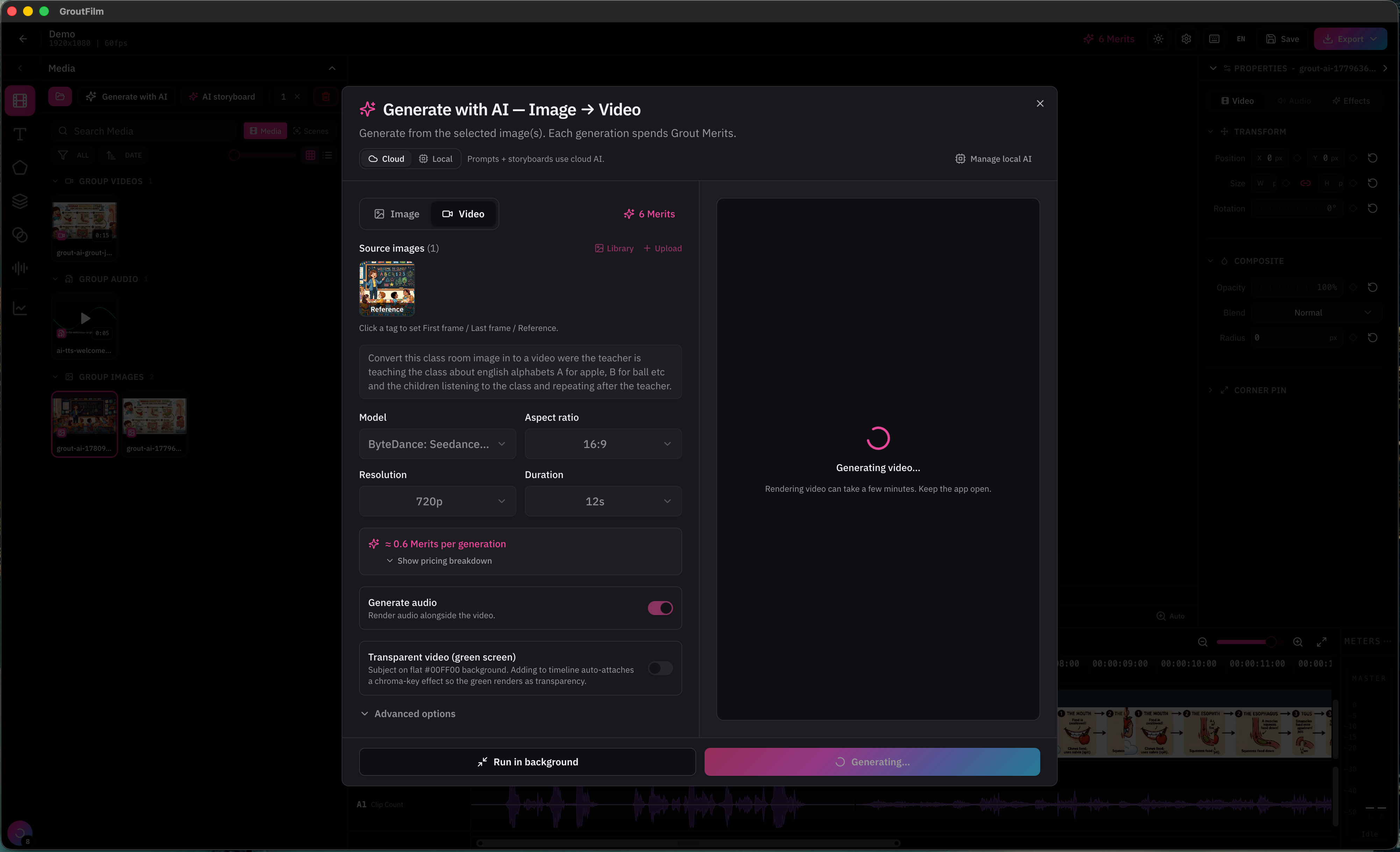
Explain how the image should be converted in to a video with a detailed prompt.
The clip appears in the media bin, ready for the timeline.
From media bin to timeline
Generated clips behave like any other media — drag them onto the timeline to edit. See Editing on the V1/A1 timeline.
Was this helpful?
Still need help? Ask the team