AI Practicals: step-by-step lab lessons from your syllabus
Pick your university and course, write code step by step, and let the compiler check every step.
Written By Grout
Last updated 20 days ago
AI Practicals turns your university or board syllabus into step-by-step lab lessons. The compiler and tests decide whether each step passes — never the AI.
Open it from the AI Practicals tile on Home, or View → AI Practicals (Ctrl/Cmd+Shift+L).
First-time setup
Pick your country (India, United Kingdom or France).
Pick your university or board.
Pick your semester or class — or Browse all courses.
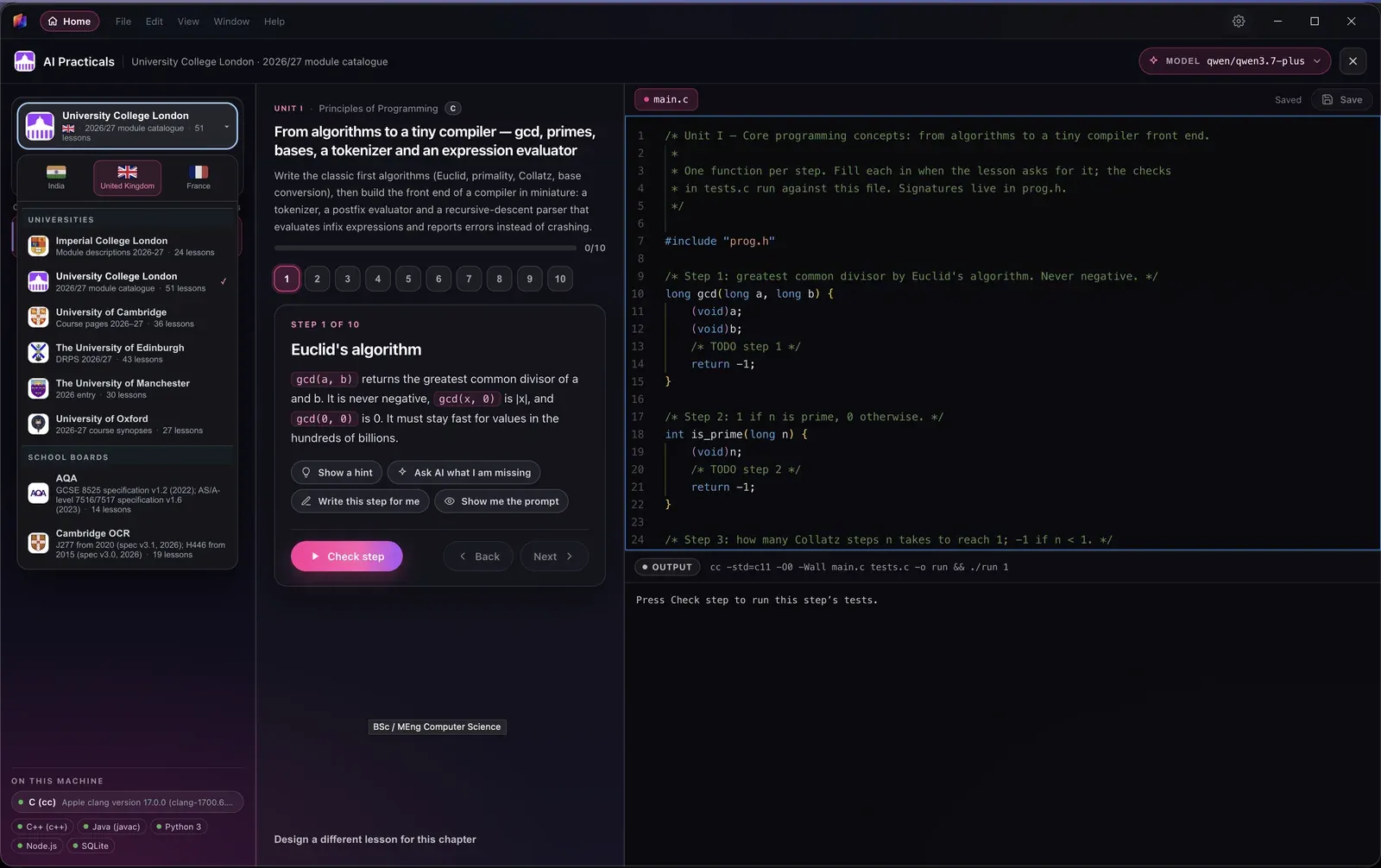
Doing a lesson
In the sidebar, choose your course and a chapter (UNIT n).
Read Step n of N. Later steps stay locked until earlier ones pass.
Write code in the editor and save (Cmd/Ctrl+S).
Press Check step (Cmd/Ctrl+Enter). The Output panel shows Passed, Failed or Timed out.
Press Next once the step passes.
When all steps pass, press Every step passed — review my code for an AI review: findings, inputs that break your code, complexity, what to do next and viva questions.
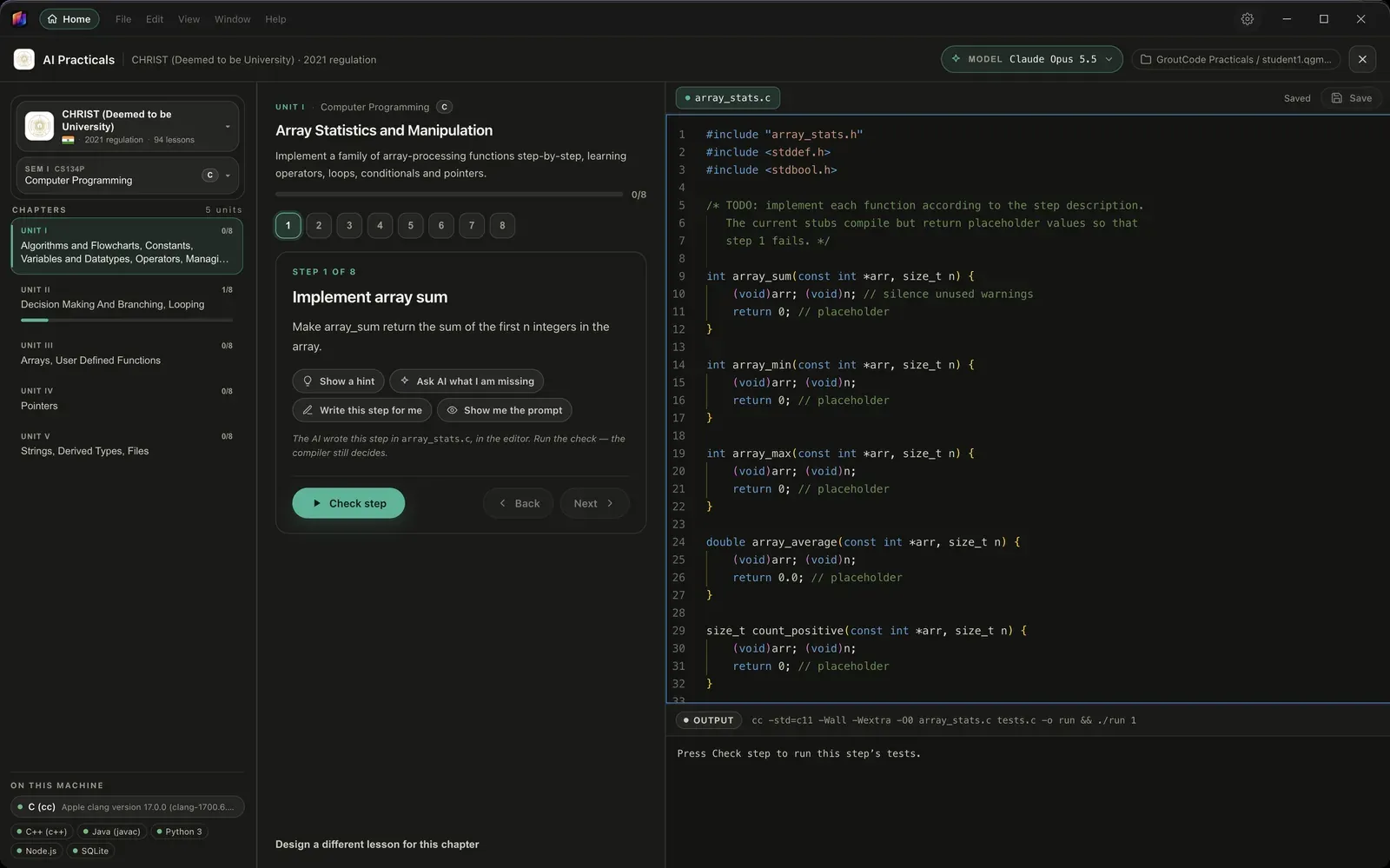
When you are stuck
In order of help:
Show a hint – free.
Ask AI what I am missing – uses the model.
Write this step for me – types the code for you and is recorded as AI-written.
Show me the prompt – see and edit exactly what is sent to the AI, then Send my version.
Design a different lesson for this chapter builds a new lesson. Chapters without a lesson show Design this lesson.
Costs
Check step runs on your computer — free and offline. AI help uses the selected model; Merits apply only on premium cloud models.
Machine compatibility
Some chapters need things a computer may not have. CUDA needs an NVIDIA graphics card (never on a Mac); OpenMP does not work with Apple's compiler; JDBC chapters cannot be checked locally. These show Not compatible with this machine.
Tips
Check fails right after opening? Save first (Check also saves).
Your work is never overwritten; missing test files are restored when the lesson reopens.
Your files are in Documents/GroutCode Practicals/<account> — open them with the folder chip in the header.
Was this helpful?
Still need help? Ask the team