Downloading and running local image models
Set up Bonsai, Stable Diffusion, or Flux and generate images offline.
Written By Grout
Last updated 4 months ago
To generate images offline, you first download a model. After that it runs locally with no further setup.
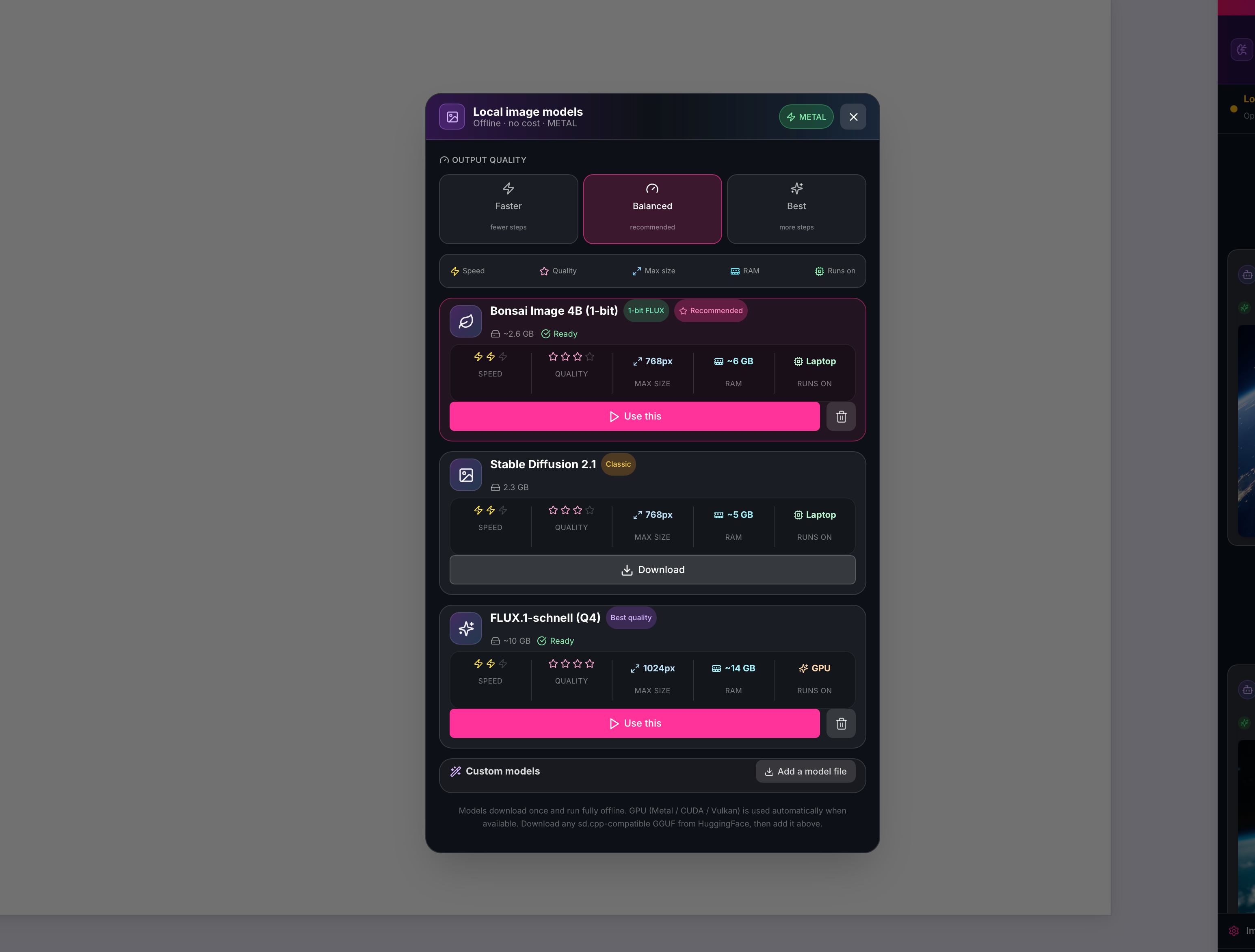
Available built-in models
Bonsai — CPU, lightweight.
Stable Diffusion — CPU.
Flux — GPU, accelerated when a supported GPU is present.
Downloading a model
Open the image generator on your canvas.
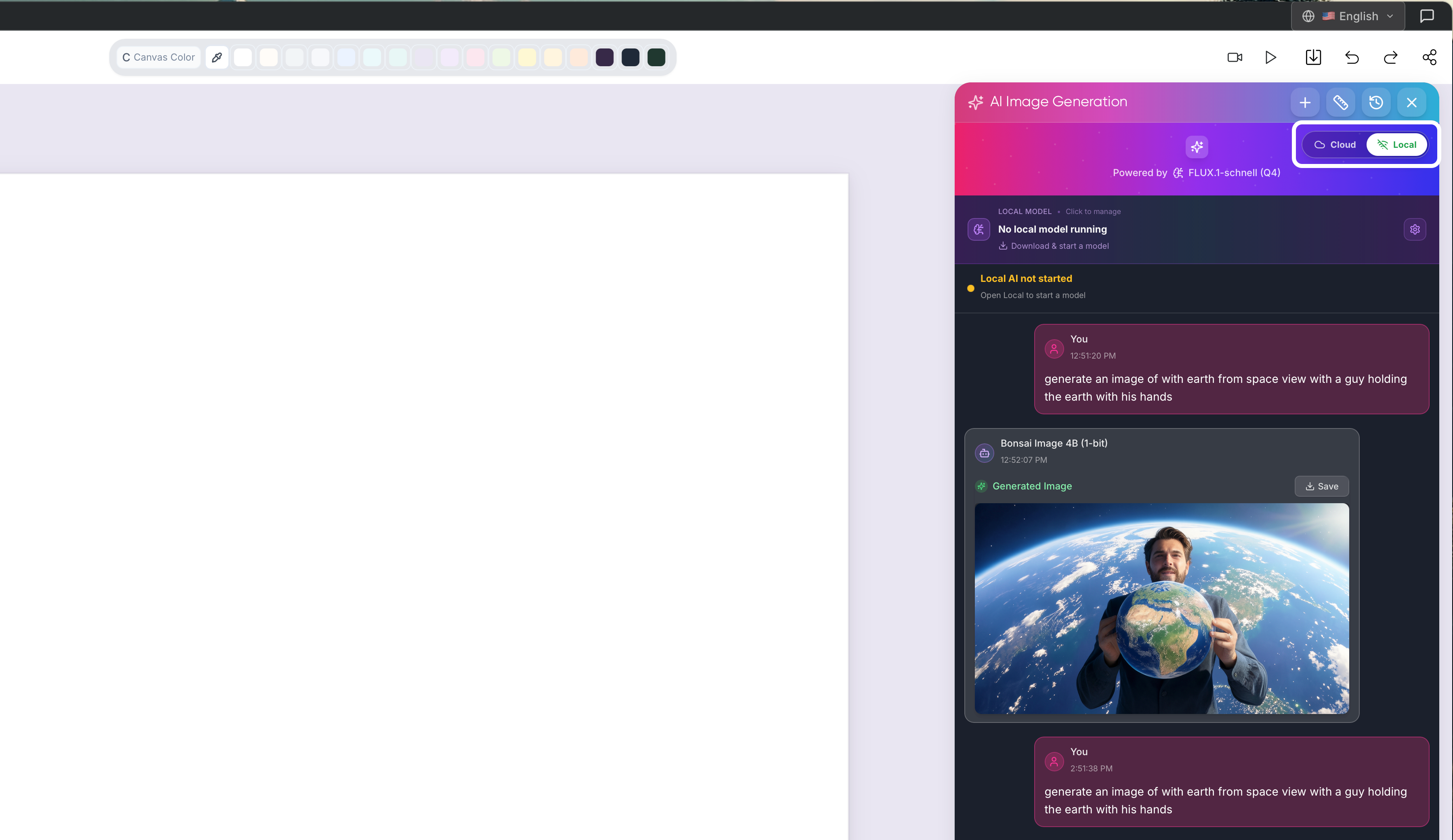
Switch the model picker to Offline.
Choose the model you want and start the download.
Wait for it to finish — this only happens once per model.
Running a model
Once downloaded, select the model from the offline list.
Write your prompt.
Generate — the image is produced entirely on your machine.
No internet connection is required after the model has finished downloading. No Merits are consumed.
Switching between models
You can switch between cloud and offline models from the same model picker at any time — pick the right tool for each generation.
Tips
Start with Bonsai or Stable Diffusion if you don't have a discrete GPU.
Use Flux when you have a supported GPU and want higher quality offline.
To add models beyond the built-ins, see Adding custom GGUF models from HuggingFace.
Was this helpful?
Still need help? Ask the team